
Open the Start menu and search for FrameSentry. If it still does not open, restart Windows and try again.
FrameSentry Player Guide
Install FrameSentry, run the correct Rainbow Six Siege comparison flow, use Complete network checks, and understand what the app is telling you before, during, and after a match.
Guide Covers
FrameSentry 0.5.11
Free, Pro, and Complete workflows
1. Install FrameSentry
- Open the FrameSentry installer package provided by Bright Gaming.
- Double-click Install FrameSentry.exe.
- If Windows asks for permission, allow the signed Bright Gaming package to install.
- When setup finishes, FrameSentry should open automatically if the launch checkbox is selected.
- If the app does not appear, open the Windows Start menu and search for FrameSentry.
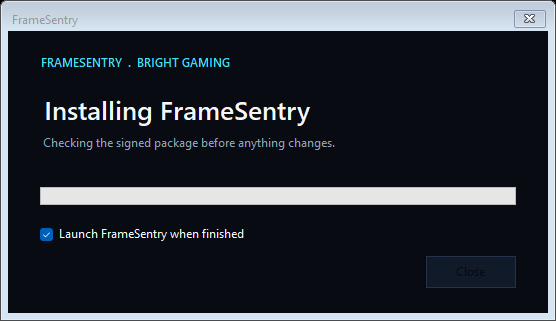
Use the installer. Do not run files from inside the Payload folder. Install first, then open FrameSentry from the app window or Start menu.
2. Start With The Dashboard
The Dashboard is the ready check. It scans the current PC and network state. A scan does not change Windows, the game, or the network.
- Click Refresh Scan.
- Wait for the process and network cards to update.
- Read the Next Step card. It will usually tell you to open Games and record a Siege baseline first.
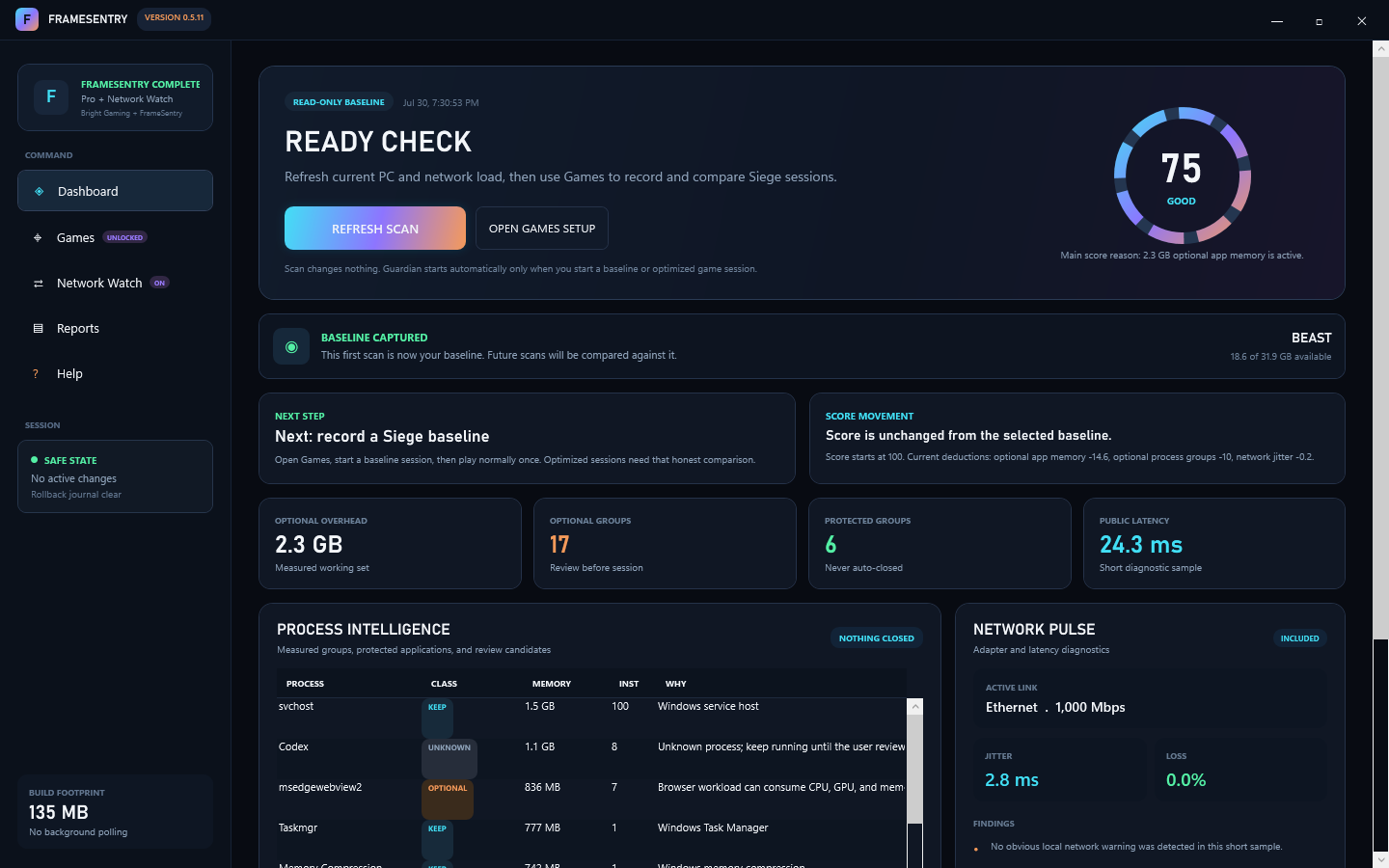
What the score means
The score starts at 100. It drops when FrameSentry sees things that can compete with smooth play.
| Score Driver | What It Means | Possible Impact |
|---|---|---|
| Optional app memory | Browsers, launchers, overlays, or optional apps are using memory during the scan. | Can lower readiness when background load is high. |
| Optional process groups | Several optional background groups are active at once. | Can point to avoidable overhead before play. |
| Packet loss | Some network check packets did not come back. | Any loss can make a competitive game feel bad. |
| Network jitter | Ping is bouncing around instead of staying steady. | Can feel like lag spikes even when average ping looks fine. |
Important: the score is not your skill, rank, or FPS. It is a quick readiness score for current PC and network conditions.
3. Set Up Rainbow Six Siege
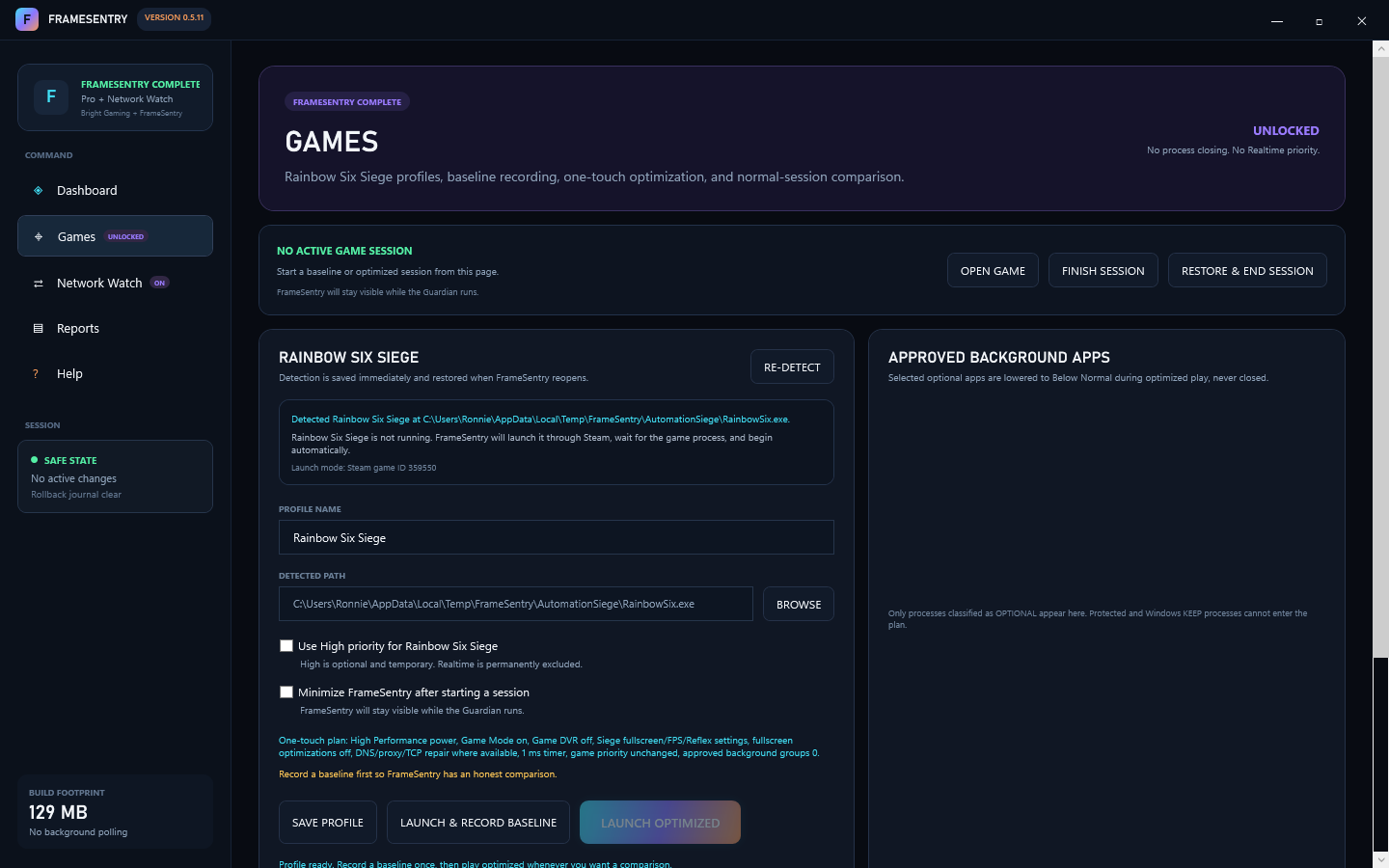
Use the Games page for actual Siege sessions. Guardian starts from a baseline or optimized game session, not from a dashboard scan.
- Click Games in the left menu.
- Confirm Rainbow Six Siege is detected. If it is not, click RE-DETECT or BROWSE and choose the Siege executable.
- Choose whether FrameSentry should stay visible or minimize after the session starts. On a two-monitor setup, keeping it visible is useful.
- Review Approved Background Apps. Selected optional apps are lowered to Below Normal during optimized play. They are not closed.
- Leave high priority off for the first comparison unless you specifically want to test that setting.
- Click SAVE PROFILE if you changed detection, priority, visibility, or background app choices.
4. Record A Baseline First
A baseline is one normal play session. It proves what the PC and game felt like before FrameSentry applied optimizer changes.
- On Games, click Launch & Record Baseline if Siege is not running.
- If Siege is already running, click Attach & Record Baseline.
- Play normally for a meaningful comparison. One full match is better than a short menu run.
- When done, close Siege or click Finish Session in FrameSentry.
- Wait for FrameSentry to save the result before starting the optimized run.
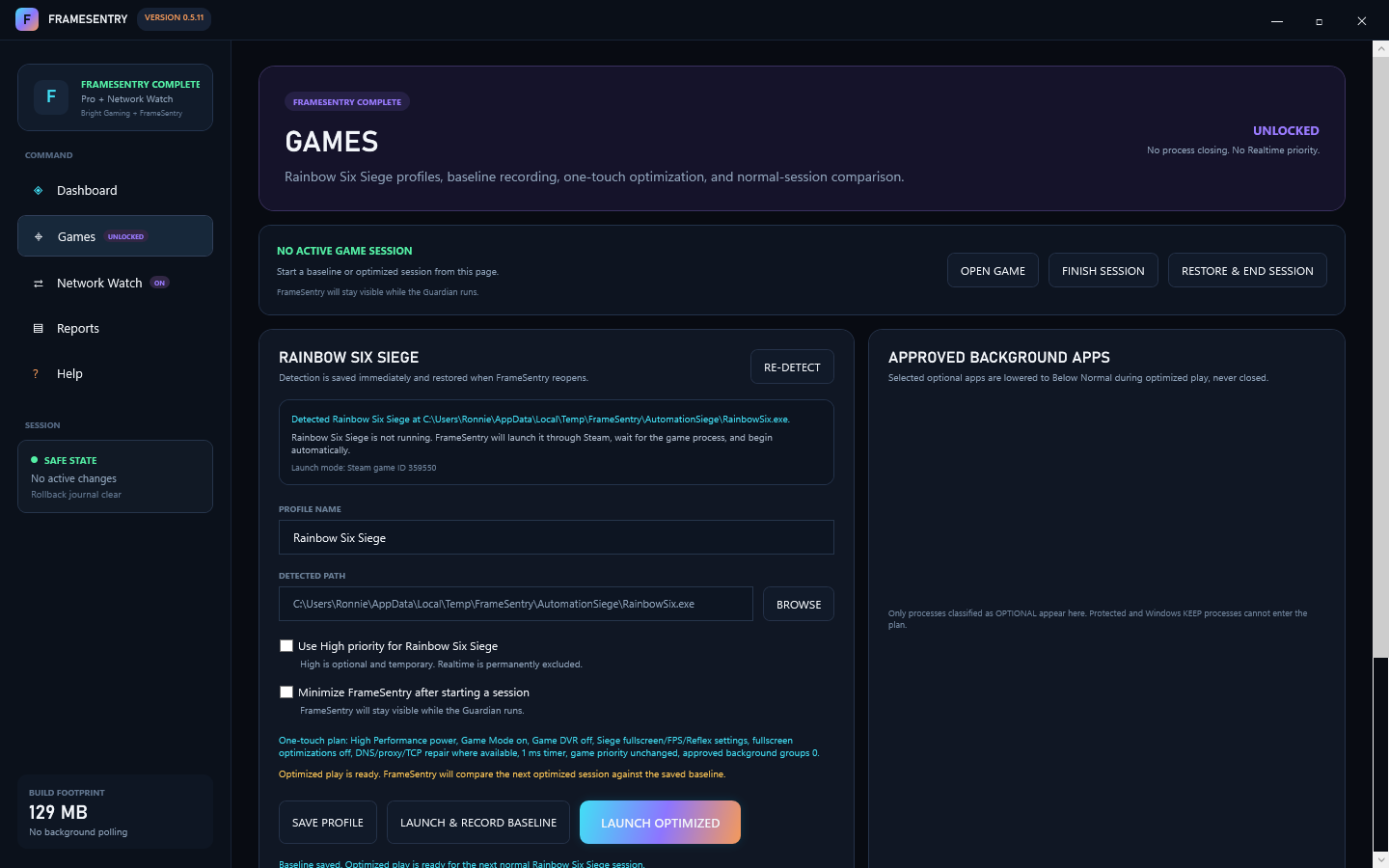
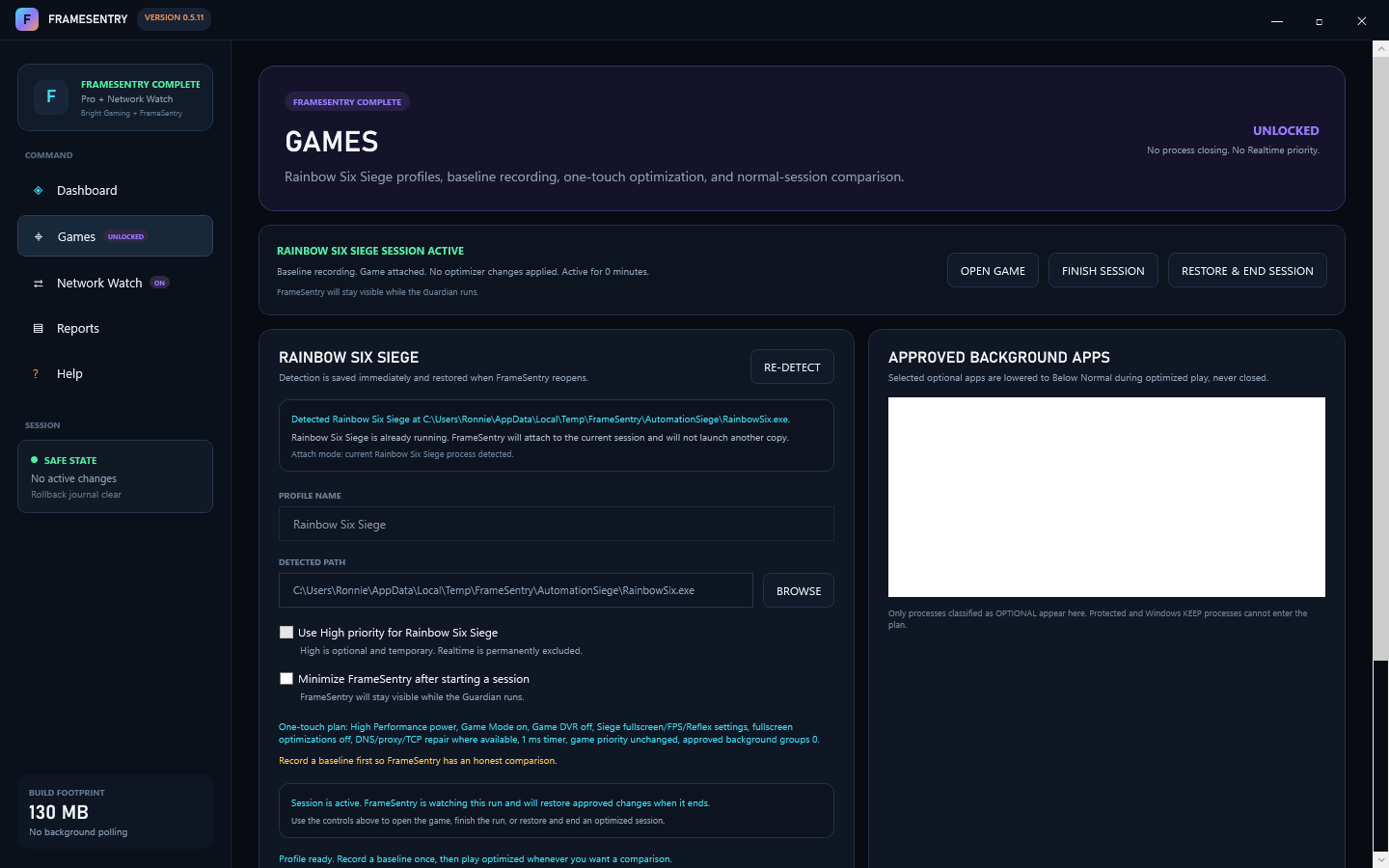
Fair comparison rule: compare similar play. Try to use the same game mode, same network, and similar apps open.
5. Play Optimized
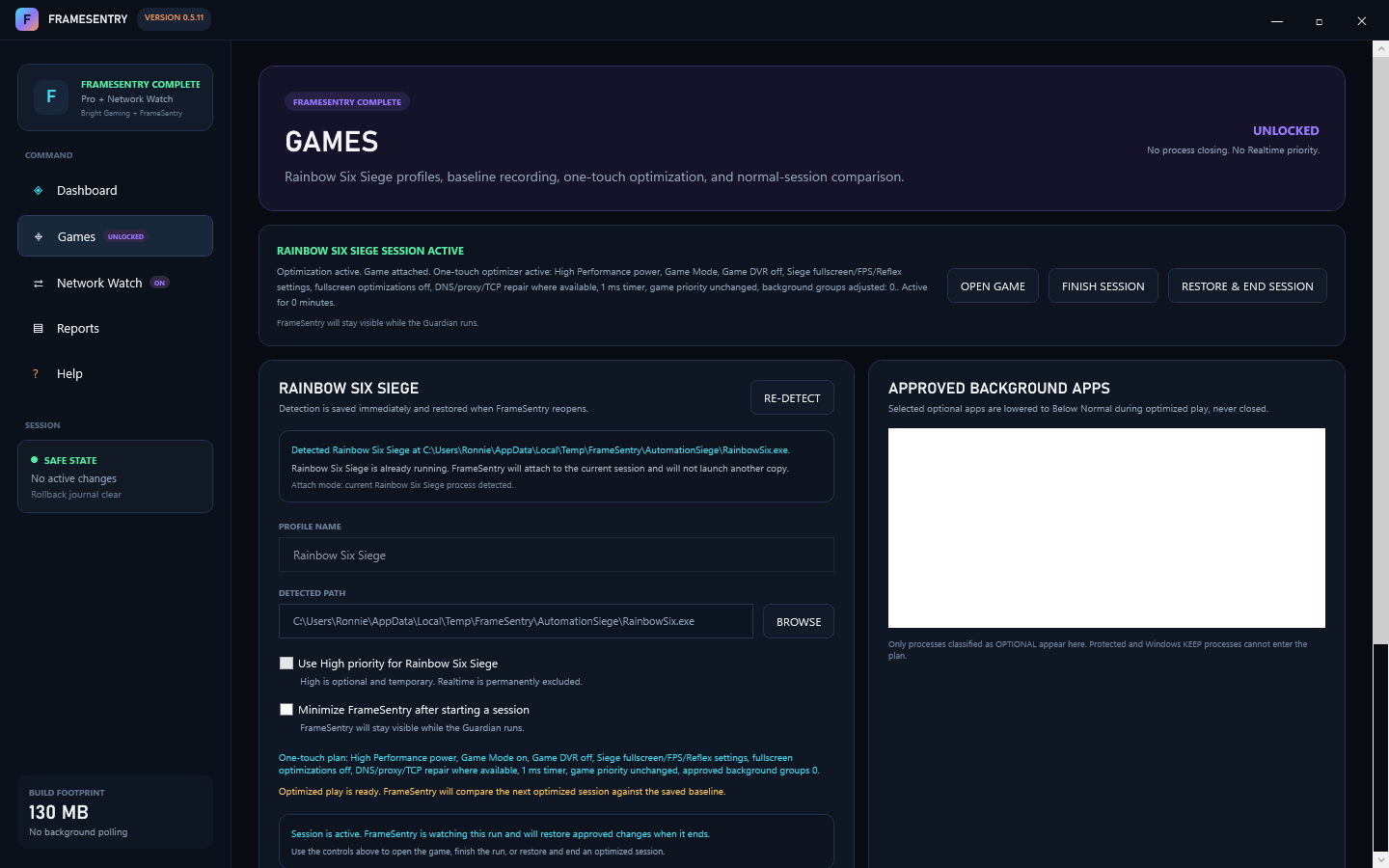
Optimized play is the one-touch Pro and Complete workflow. FrameSentry applies reversible local changes, watches the session, then restores the changes when the session ends.
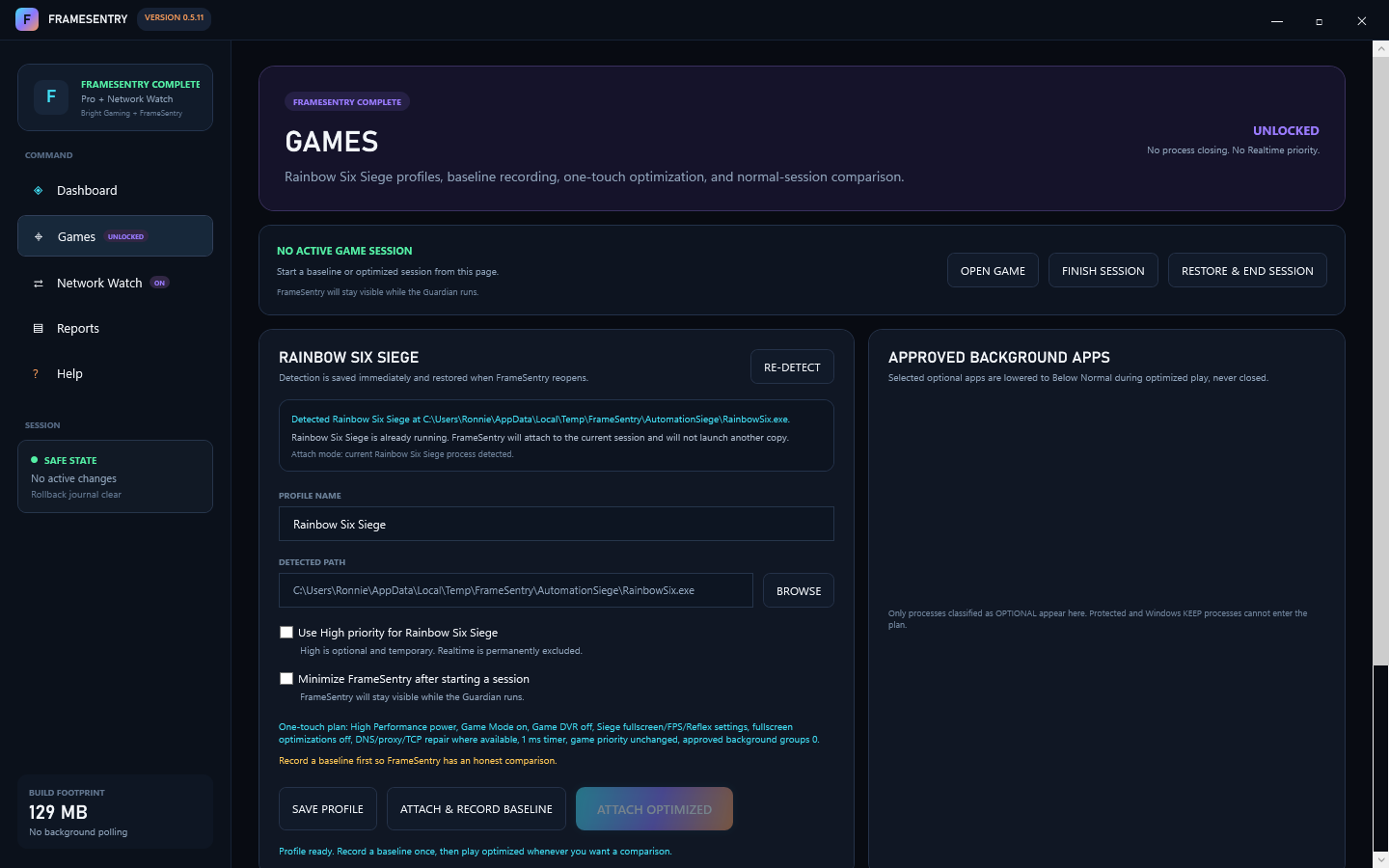
- After a baseline exists, click Launch Optimized if Siege is closed.
- If Siege is already open, use Attach Optimized.
- Read the confirmation. It lists the exact plan before anything is applied.
- Play normally. Leave FrameSentry visible on a second monitor if you want to watch status.
- When finished, close Siege or click Restore & End Session.
- Wait for the restore and comparison to save.
What optimized play changes
| Area | Action | Restore Behavior |
|---|---|---|
| Siege settings | FPS cap unlocked, fullscreen mode, VSync off, low GPU frame queue, and NVIDIA Reflex Boost when available. | Original values are journaled and restored after the session. |
| Windows display compatibility | Disable fullscreen optimizations for the Siege executable during launch. | Original compatibility flag is restored. |
| Windows gaming settings | Game Mode on and Game DVR/background capture off. | Original values are restored. |
| Power and timer | High Performance power plan when needed and 1 ms timer request during Guardian. | Power plan and timer request are restored. |
| Network | DNS cache flush, session-only proxy bypass if a user proxy is active, TCP auto-tuning/RSS repair if elevated and Windows reports a broken value. | Persistent values are restored. DNS flush is a one-time clean-up action. |
| Background apps | Selected optional apps are lowered to Below Normal priority. | Process priorities are restored, or Windows discards them when the process exits. |
Safety boundary: FrameSentry does not close programs, use Realtime priority, touch game memory, inspect packets, inject an overlay, or interfere with anti-cheat.
6. Use Network Watch For Internet Issues
Complete includes Network Watch so a player can prove whether the issue looks local, router/Wi-Fi/cable related, or farther out on the route.
- Click Network Watch in the left menu.
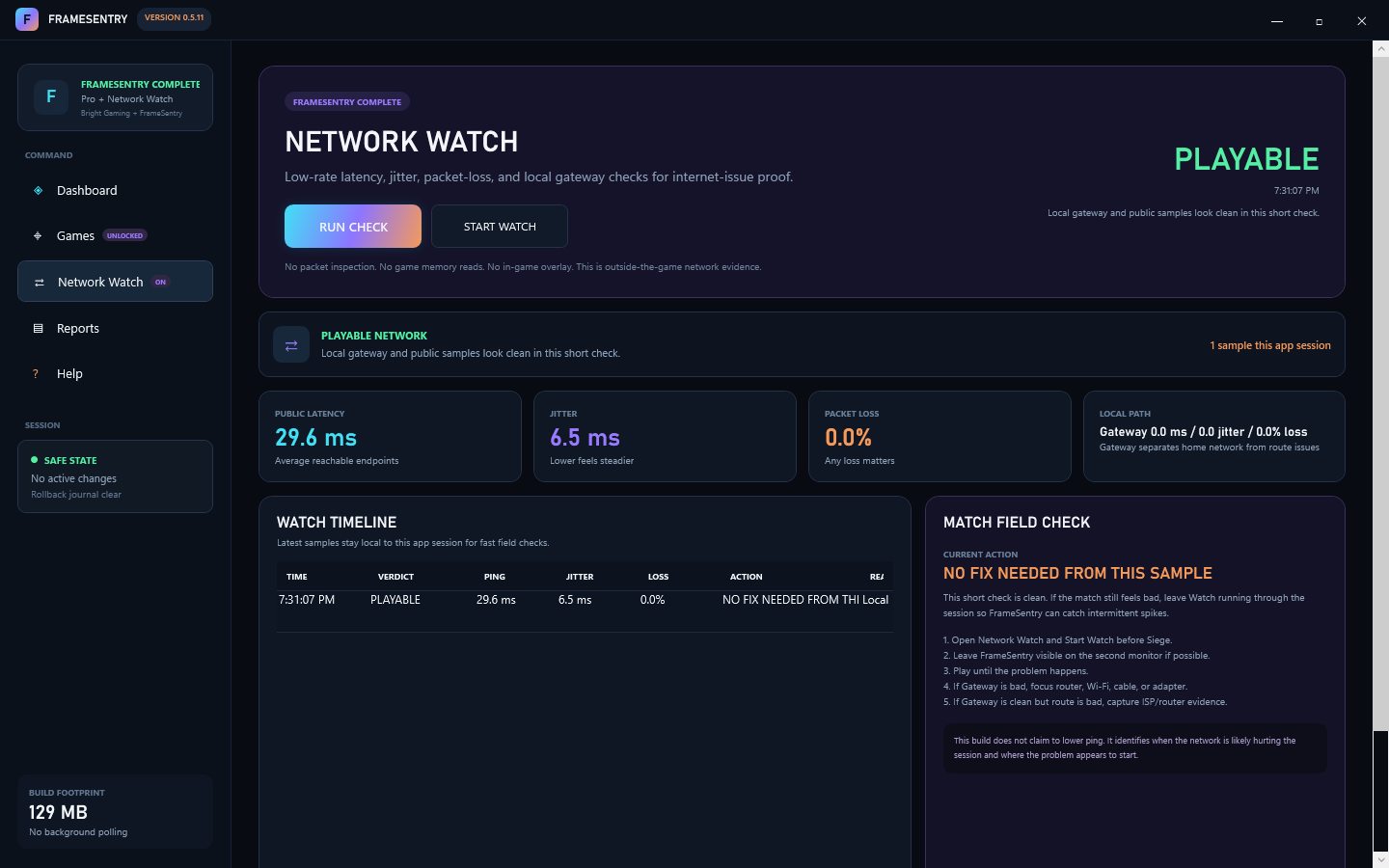
- Click RUN CHECK for a quick sample.
- Before a match where you expect problems, click START WATCH.
- Leave FrameSentry visible on a second monitor if possible.
- If the match feels bad, look at public latency, jitter, packet loss, and local path.
| Signal | What To Look For | What It Usually Means |
|---|---|---|
| Public latency | Higher than usual ping. | Route, ISP, server distance, or background network use may be involved. |
| Jitter | Ping bouncing up and down. | Unstable route, Wi-Fi interference, router load, or local congestion. |
| Packet loss | Anything above 0% matters. | Lost traffic can cause rubber-banding, delayed hit registration, or disconnect-like moments. |
| Local path | Gateway warning or unstable gateway. | Focus on cable, Wi-Fi, adapter, router, or local PC network stack first. |
What FrameSentry can and cannot fix: it can apply safe local PC and Windows network repairs. It cannot change router settings unless the player logs into the router, and it cannot fix ISP routing by itself. It can give evidence about where the issue appears to start.
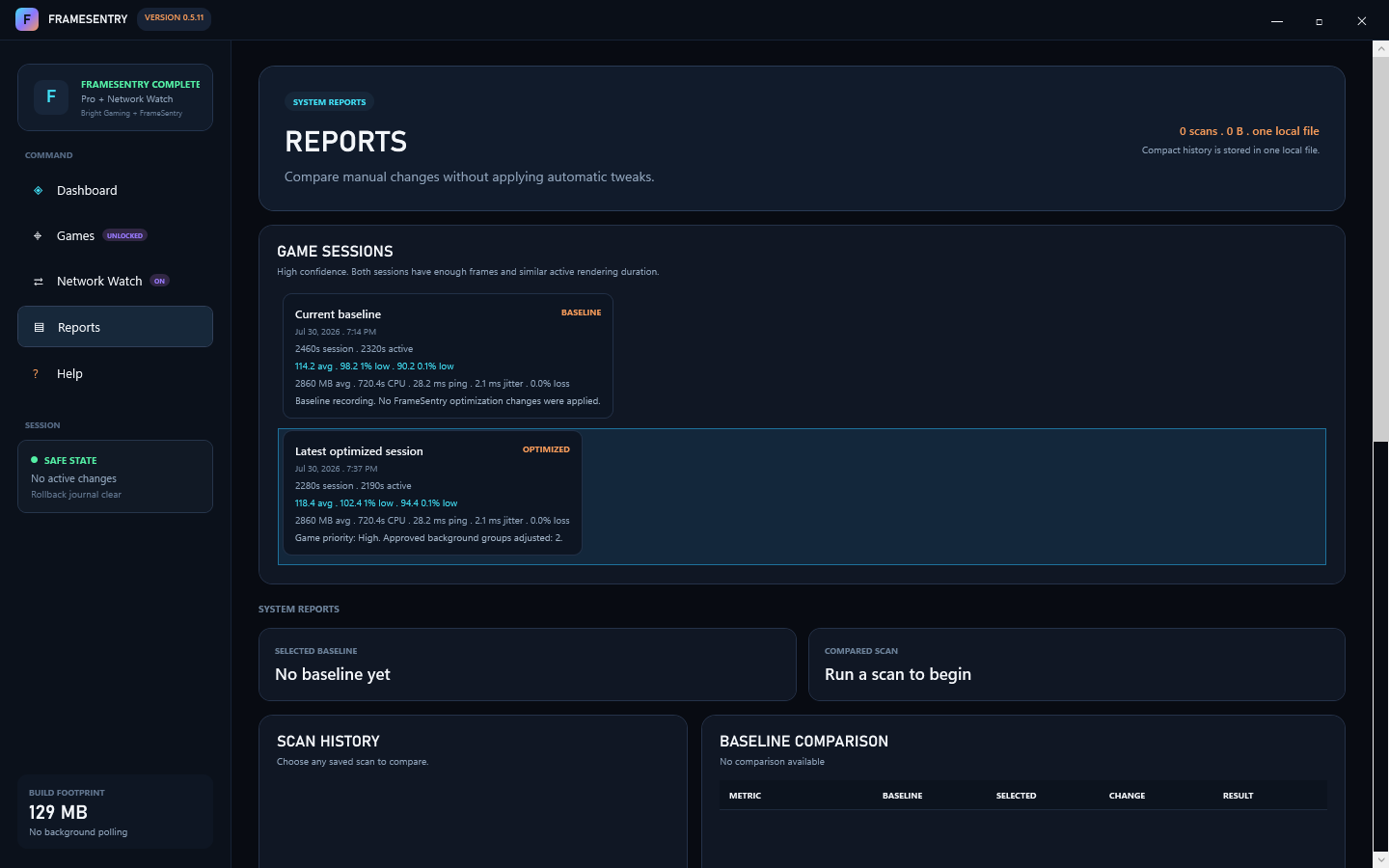
7. Read Reports
Reports are where you decide whether the optimized session helped. Look for smoother frame pacing, stronger FPS, lower background pressure, and cleaner latency compared with the baseline.
- Click Reports.
- Select the baseline and optimized sessions you want to compare.
- Read the confidence note. A weak or invalid capture means you should run another session.
- If optimized play felt worse, run another baseline and optimized pair before deciding. One bad match can be a server or matchmaking issue.
8. Best Comparison Flow
- Run Refresh Scan and note the score, packet loss, jitter, and public latency.
- Open Network Watch and start watching if you are checking lag or packet loss.
- Open Games and record one normal Siege baseline match.
- After the baseline saves, run one optimized Siege match.
- If the match feels bad, check Network Watch while the problem is happening.
- Open Reports and compare the baseline against optimized play.
9. Troubleshooting
Go to Games, click RE-DETECT, or use BROWSE and choose the Siege executable.
Record a valid baseline first. Optimized comparison needs a normal-session baseline.
Use Attach & Record Baseline or Attach Optimized. Do not launch a second copy.
Use Alt+Tab or the Windows key. On two monitors, leave the minimize option unchecked so FrameSentry stays visible.
Use Restore & End Session. This is the safest stop button because it restores the optimizer plan.
If Gateway is bad, focus local equipment first. If Gateway is clean but public route is bad, collect evidence for router or ISP troubleshooting.
Run another baseline and optimized pair. One match can be affected by map, server, teammates, opponents, or background downloads.
Privacy and anti-cheat note: FrameSentry works outside the game. It does not read game memory, inject code, inspect packets, or automate in-game decisions.